Installation w/o Docker#
Note
We strongly recommended using the Docker setup for ALVR. But if you want to use hand tracking, please build ALVR from source.
This is the tutorial for installing ALVR without Docker, setting up WiFi-based streaming and configuring a conda environment for teleoperation.
Build ALVR from Source#
Install Steam from package manager:
sudo apt install steam
Launch it once and wait for update to finish. Do not log in.
Warning
Do not download Steam from Snap or Flatpak since SteamVR does not work in a sandboxed environment.
Go into
alvr_greenfolder, and run./install.sh. Openvr config is installed to$HOME/.config/openvr.
Note
In the future, if SteamVR blocks the ALVR plugin, delete the $HOME/.config/openvr/config.
Edit
./alvr/xtask/deb/cuda.pcto point at your CUDA toolkit path and run:export PKG_CONFIG_PATH=./alvr/xtask/deb
Install the build dependencies of ALVR. For Ubuntu 20.04/22.04/24.04, run:
sudo apt install build-essential pkg-config libclang-dev libssl-dev libasound2-dev libjack-dev libgtk-3-dev libvulkan-dev libunwind-dev gcc g++ yasm nasm curl libx264-dev libx265-dev libxcb-render0-dev libxcb-shape0-dev libxcb-xfixes0-dev libspeechd-dev libxkbcommon-dev libdrm-dev libva-dev libvulkan-dev
Note
This step is crucial as ALVR streamer is released without dependencies. ALVR will fail silently if some dependency library is missing.
(Skip this step if Rust is already installed) Install Rust by following the official guide:
curl --proto '=https' --tlsv1.2 -sSf https://sh.rustup.rs | sh
After installation, verify that Rust is installed correctly:
rustc --versionBuild ALVR streamer from source:
cargo xtask prepare-deps --platform linux
cargo xtask build-streamer --release
Launch ALVR dashboard:
./build/alvr_streamer_linux/bin/alvr_dashboard
In the dashboard, install ALVR by following the on-screen instructions (the default installation is sufficient).
After installation, go to
Settings→Connectionin the ALVR dashboard and switch the streaming protocol toTCP.In the
Connectionstab of the ALVR dashboard, clickAdd device manuallyand enter the IP address127.0.0.1.Follow the connection steps shown in the tutorial video:
ALVR connection setup tutorial
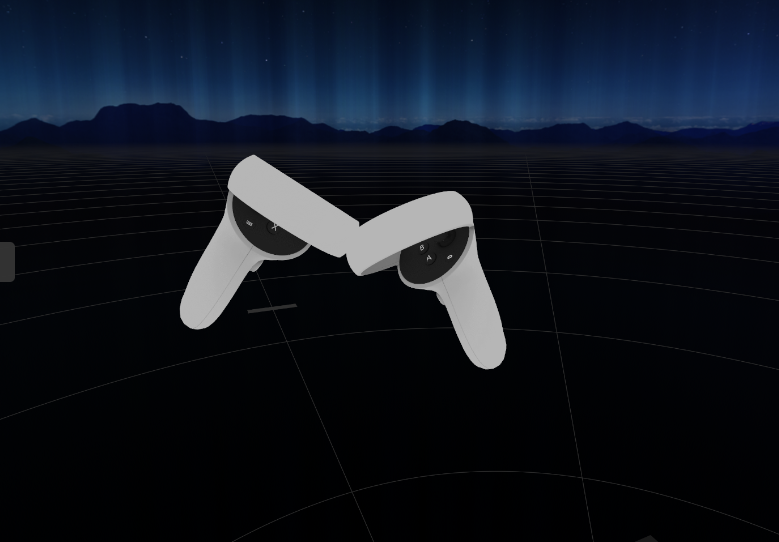
Test scene in VR headset#
Note
You may need to launch SteamVR twice from ALVR to make it work.
Warning
If you have two more GPU (like in laptop case where you have 1 integrated graphics and 1 NVIDIA GPU), you need to disable the integrated graphics in BIOS to make sure the Nvidia GPU is used for rendering. For LENOVO laptop, you can do this by going to BIOS -> Configuration -> Graphics Device -> Discrete Graphics.
Note
SteamVR requires a clean shutdown. If ImVR is killed with a signal or by calling exit, SteamVR will fail to initialize in the next run. This can be fixed by closing SteamVR and launch again.
Connect to ALVR via Wifi Connection#
Warning
This set up might effect the system performance. If you experience significant delays in VR teleoperation, consider using a USB connection instead.
Make sure the VR headset and the host machine are connected to the same 5G Wifi network. A 2.4G Wifi or low-quality 5G Wifi connection will result in failure to connect or significant delays in video streaming.
Close SteamVR and click “Launch SteamVR” in ALVR streamer. This should open SteamVR and display the connected headset. Click “Trust” in ALVR streamer. If successfully connected, ALVR streamer will display “streaming” in green text, and Latency under 100 in Statistics.
Note
Tutorial video is WIP.
Conda Environment Setup#
conda create -n teleop python=3.10 # this is the recommended version
conda activate teleop
python3 -m pip install -e .
cd 3rd_part/ManiSkill && python3 -m pip install -e . # install local maniskill
python3 -m pip install https://github.com/haosulab/SAPIEN/releases/download/nightly/sapien-3.0.0.dev20250303+291f6a77-cp310-cp310-manylinux_2_28_x86_64.whl # install the latest sapien version